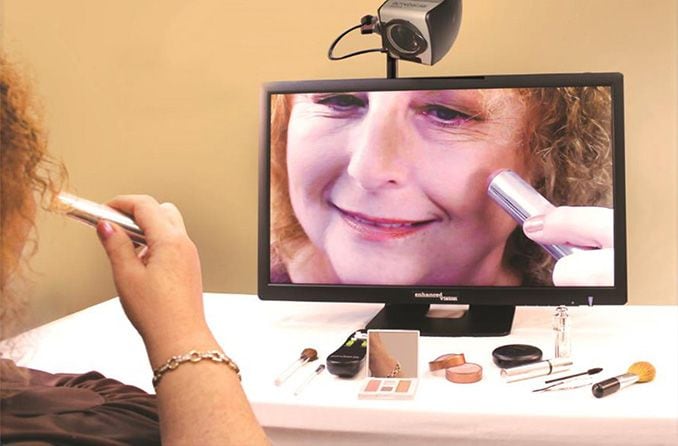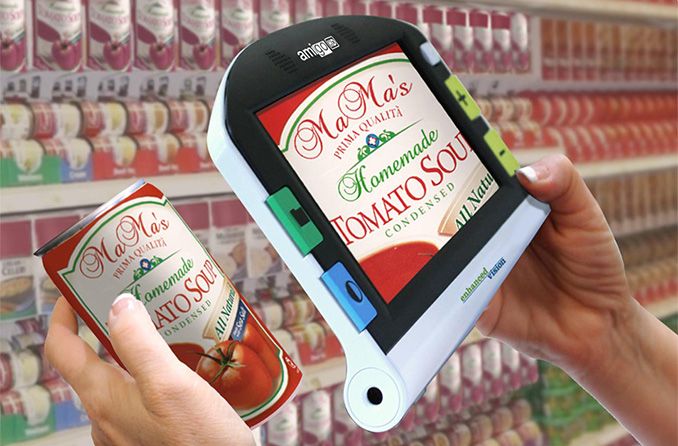

In general, visually impaired people can use the same low vision aids for viewing a computer screen as they do for regular reading activities. These include eyeglass-mounted magnifiers, handheld magnifiers and stand-alone magnifiers.
But also, special software has been developed to display content on the screens of computers and other digital devices in large print. Other applications can read text and other visual content aloud with a synthetic voice.
These adaptive low vision devices let partially sighted people do the same computer-related tasks as fully sighted people — such as word processing, creating and using spreadsheets and viewing web pages online.
Screen magnification
Most computer operating systems and Internet browsers allow you to increase the size of web pages and text on your computer screen to make them more visible to partially sighted users.
Here are a few simple tips for adjusting text size:
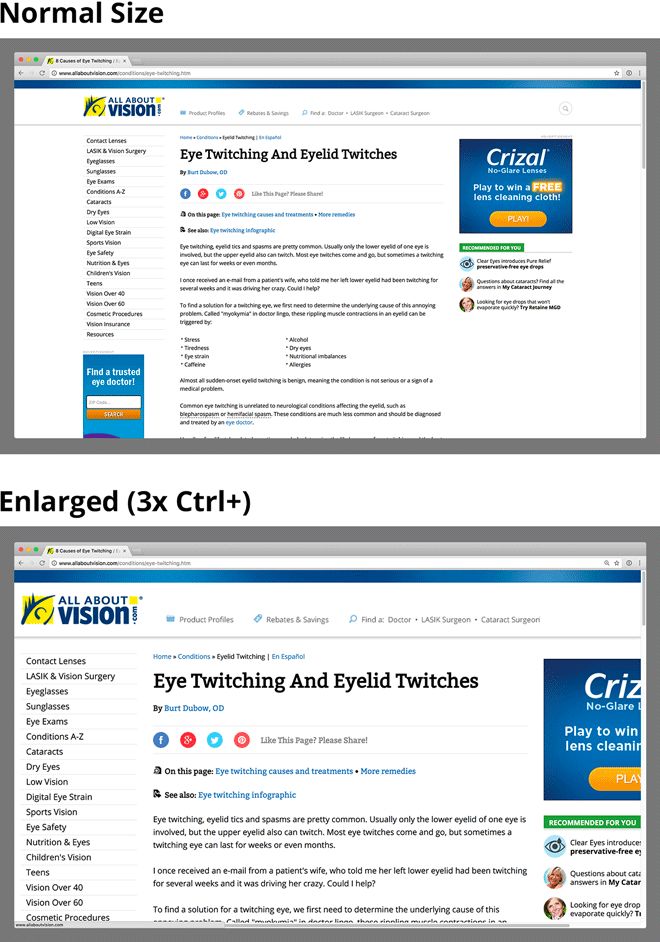
Normal page view (top screenshot)and magnified view after using the "Ctrl" and "+" keys on a PC keyboard (bottom screenshot).
In most browsers on a PC you can enlarge a web page on your screen by holding down the Control ("Ctrl") key on your keyboard and tapping the "+" key. (If you use a Mac, hold down the "Command" key while tapping the "+" key.)
To zoom out, tap the "-" key while holding down the Control key (or Command key).
To return the view to actual size, tap the "0" (zero)key while holding down the Control or Command key.
Some devices, browsers and applications also offer the ability to enlarge text and images with a "Zoom" command in the View menu at the top of the browser window.
Third-party screen magnification software goes the extra step and displays not just larger text on your screen, but also larger icons, mouse pointers and other navigation items. Products such as Zoom Text, SuperNova Magnifier and MAGic will enlarge the text and images on your screen.
Also, a person with low vision will benefit most from these options for magnifying print and images when using a desktop computer with a large screen size (21 inches or larger).
Screen reader programs
People with tunnel vision from glaucoma or central blind spots from macular degeneration may find it difficult and tiring to read an entire computer screen. This is one reason that "talking computers" were invented.
Talking computers are powered by screen reader software based on optical character recognition (OCR)systems that first scan text in a word processing document or Web page and then convert the text to sounds. The result is a synthetic voice that reads aloud not only the actual text but also important navigation items such as the cursor location.
With screen reader programs even totally blind people can use a computer because they convert both text and icons to speech. Some screen reader options include: MAGic LVS; Serotek System Access To Go; SuperNova Screen Reader; and ZoomText Magnifier/Reader.
Another option is a simple built-in screen reader called Narrator that is included with Microsoft applications.
If you use Google's operating system, it includes a screen reader called ChromeVox. If you are a Mac user, Apple includes a screen reader called VoiceOver.
If you have some functional vision, but sometimes struggle with reading certain text, a simple screen reading program may do the trick and will likely be easier to learn, since you merely select the text you want to be read aloud. Panopreter, Natural Reader and ReadSpeaker Text Aid all offer this type of functionality.
Your mouse
Some people with low vision prefer using keyboard commands instead of a mouse, because impaired vision can make it more much difficult to precisely position the cursor on the screen with a mouse. Using keyboard commands instead of a mouse may help you work faster at the computer, with less frustration.
If you would rather use a mouse, you may want to invest in one that is ergonomically designed for comfort and ease of use. A wireless optical mouse is another good option because your movements aren't limited by the wire leading from the mouse to the computer.
Also, if you sometimes experience hand cramps, try using a bigger mouse that lets your hand stay in a more open position instead of being clenched up.
A common source of frustration is a mouse set at a speed that is too fast or too slow. If you're a Windows user and you can't control your mouse because it seems to "zoom" across the screen, you can adjust this by clicking on the Start menu, then Control Panel, then Mouse. On a Mac, click on the Mouse icon in the System Preferences menu to adjust mouse settings.
Glare and contrast adjustments for low vision
If you have low vision, you should consider using higher contrast settings on your computer screen. You'll find appropriate settings this way:
Select Control Panel on your PC.
Open the Display Properties dialog box and choose Appearances or Settings.
Under the Appearances and Themes tab in more modern software, select the High Contrast option.
Under Control Panel in modern software, you also might have a tab for Accessibility Options containing tips for low vision adjustments.
If you have a Mac, select System Preferences and then Displays. You'll then find options for adjusting screen resolution to increase contrast and to change the appearance, which allows you to select colors.
Dark text displayed against light backgrounds generally is considered the best color combination for those with low vision.
To reduce glare on your computer screen, make sure you adjust window blinds to prevent reflections from outside lighting. Also, adjust the position of your screen to reduce glare from reflections of indoor lights. If needed, special screens and hoods are available to fit around your computer screen to maximize visibility.
Flickering screens and other problems
If you are one of the few people still using a tube-style display (also called a cathode ray tube or CRT) with your desktop computer and you notice the screen "flickers," be aware that this can cause computer eye strain.
Usually you can eliminate the flickering sensation by adjusting the CRT display settings. If you use Windows, go to the Display menu within Control Panel. Click on the "Advanced" tab and adjust the refresh rate of the screen to 70 Hz (hertz)or higher. This should eliminate the flicker and increase viewing comfort.
Also, consider upgrading to a flat-panel screen. These thin screens use different technology (usually LED-backlit LCD, which means light-emitting diode-backlit liquid crystal display) that doesn't cause flickering. So they tend to be more comfortable for long-term viewing and cause less eye strain than CRT screens.
READ NEXT: Internet accessibility guide for vision impairment